How to Use TOLFA
What's TOLFA?
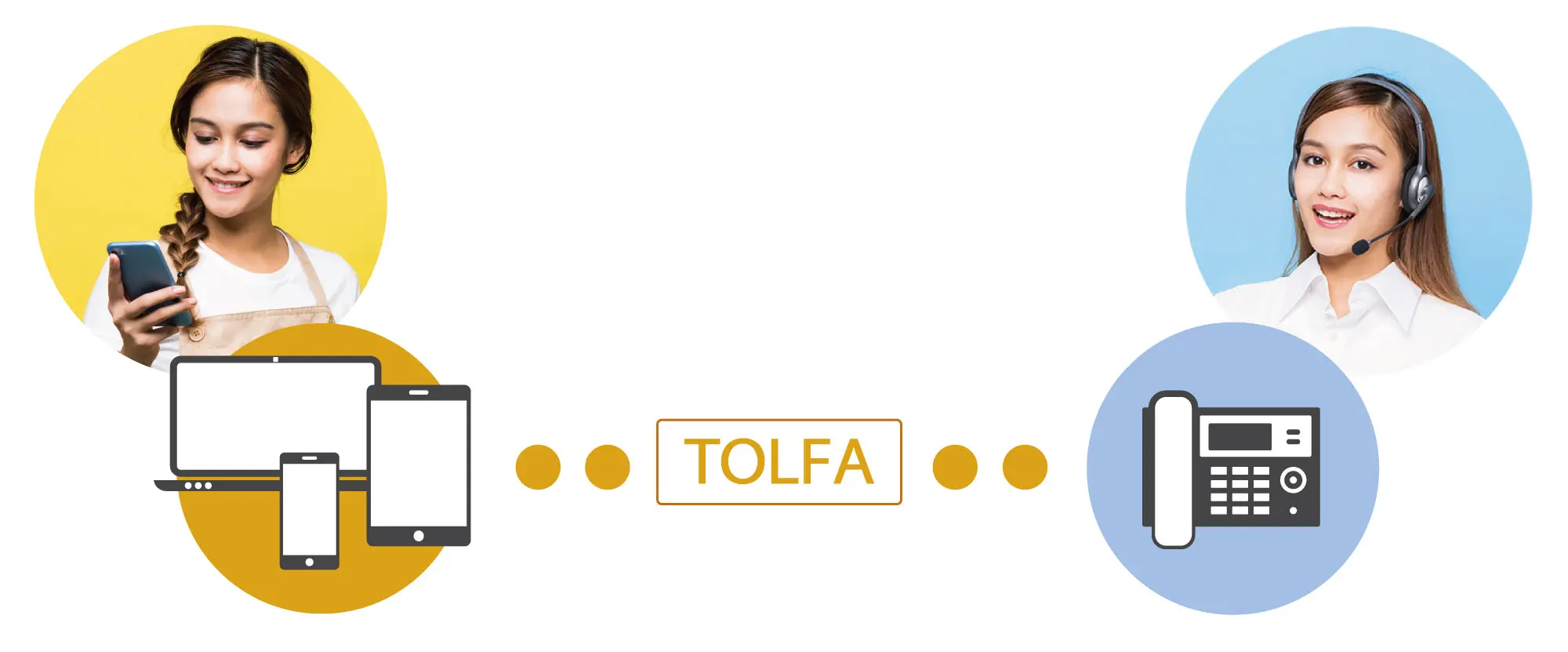
TOLFA is a service that lets you talk with AI voicebots or contact center agents directly through the browser on your smartphone, tablet, or PC. Simply tap (or click) a button in the browser to start a conversation with an AI voicebot or a contact center agent. No traditional phone dialing required—just one tap to begin the call.
What's Good About TOLFA?
No Installation of the Application Is Necessary.
Conversations take place through a web interface, with no application installation required. With just a tap of a button, you can instantly start a conversation with a contact center agent or an AI voicebot whenever the need arises.
Encrypted High-Quality Calls
All audio is securely encrypted, ensuring that conversations cannot be intercepted or decoded. You can communicate with AI voicebots or contact center agents without relying on traditional telephone lines. Despite using only about 10 KB/s of data (approximately 0.6 MB per minute), the service delivers high-quality voice communication.
Outbound-Only Service Using a Dedicated Number
TOLFA is an outbound-only service designed to connect users to AI voicebots or contact centers. Because calls are made through a web browser, the calling number is not the phone number of the smartphone itself, but a unique number assigned by the system.
TOLFA Do Not Acquire User Attribute Information.
TOLFA do not acquire user attribute information for marketing purposes or provide such information to third parties. We have established a policy to promptly erase even the minimum records required for system operation.
The Usage of TOLFA
There Is a Note to Consider Initially.
Since it uses a browser, audio will be transmitted through speakers or headphones (earphones) during the call.
Since it's not a traditional phone call, the audio will be outputted through speakers or headphones.
The supported browsers are as follows: Android: Chrome (latest version), iOS/MacOS: Safari (latest version), PC: Chrome, Firefox, Edge (latest versions of each).



Let's Make a Call
Use From a Website or QR Code
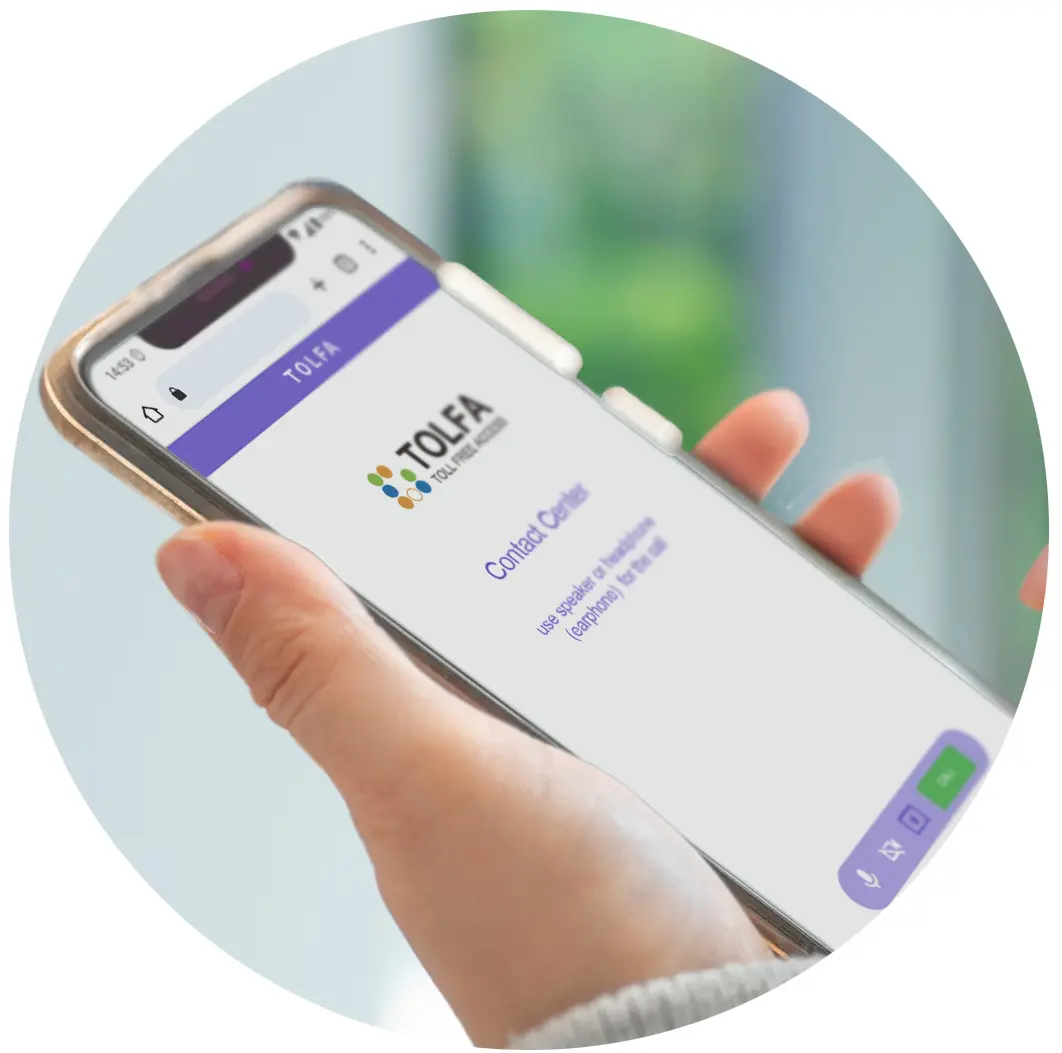
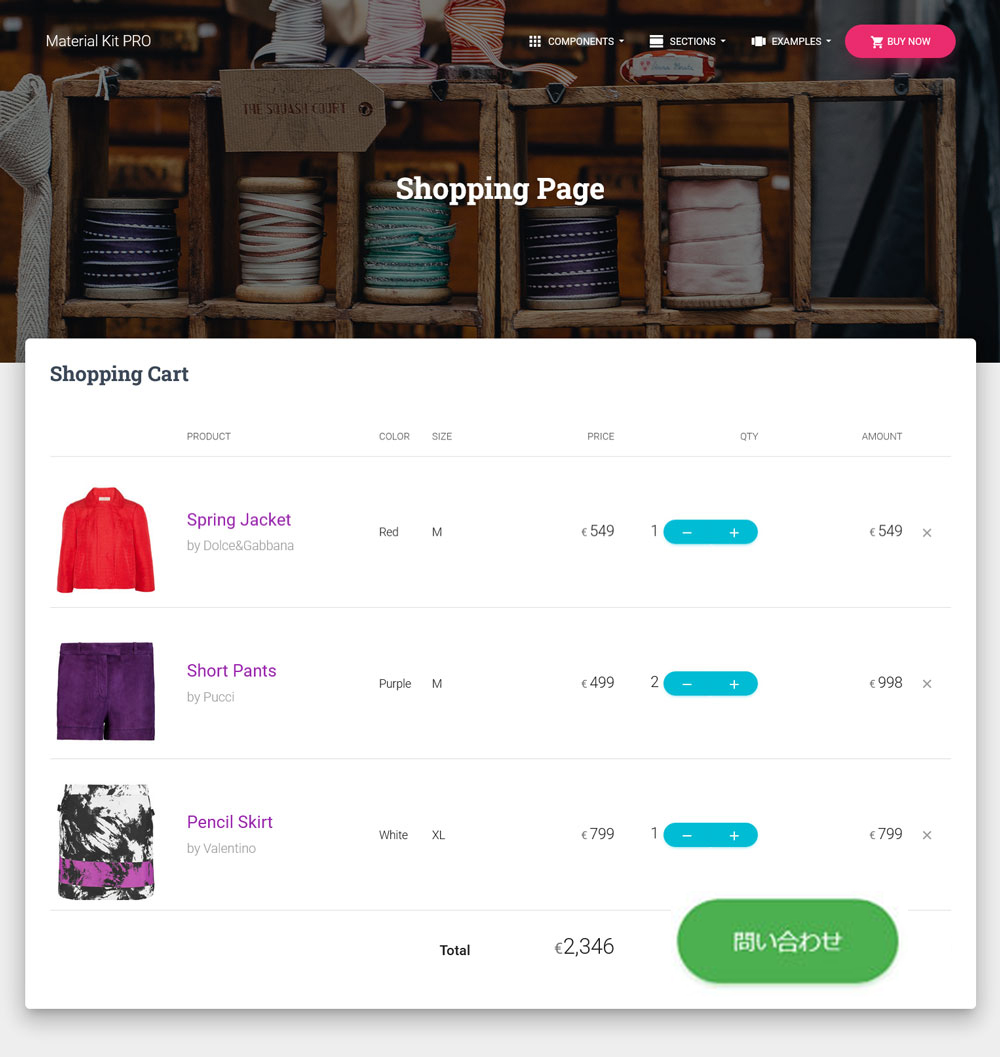
When you tap on the inquiry button on the website or scan the QR code, the TOLFA user interface for making calls will appear.
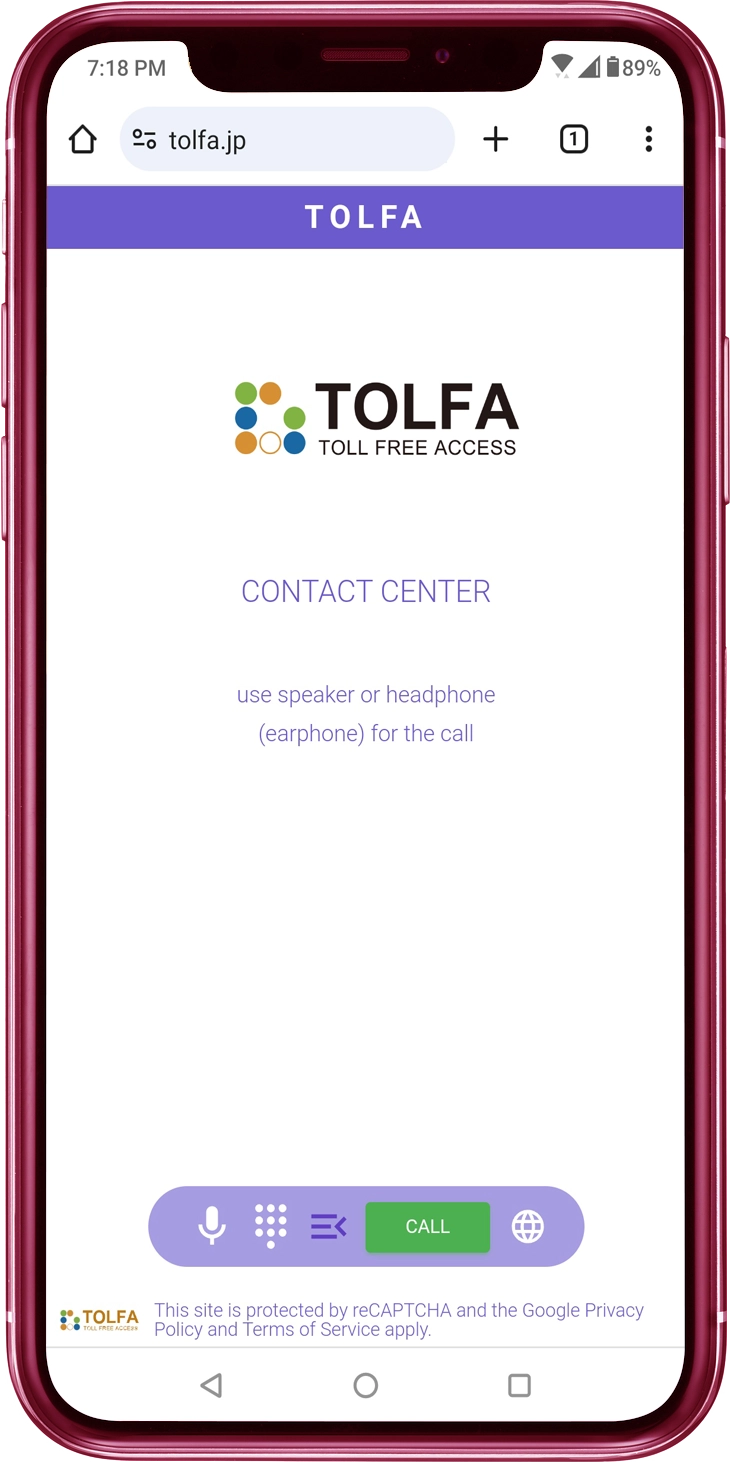
Tap the CALL Button
You tap the CALL button located at the bottom of the user interface.
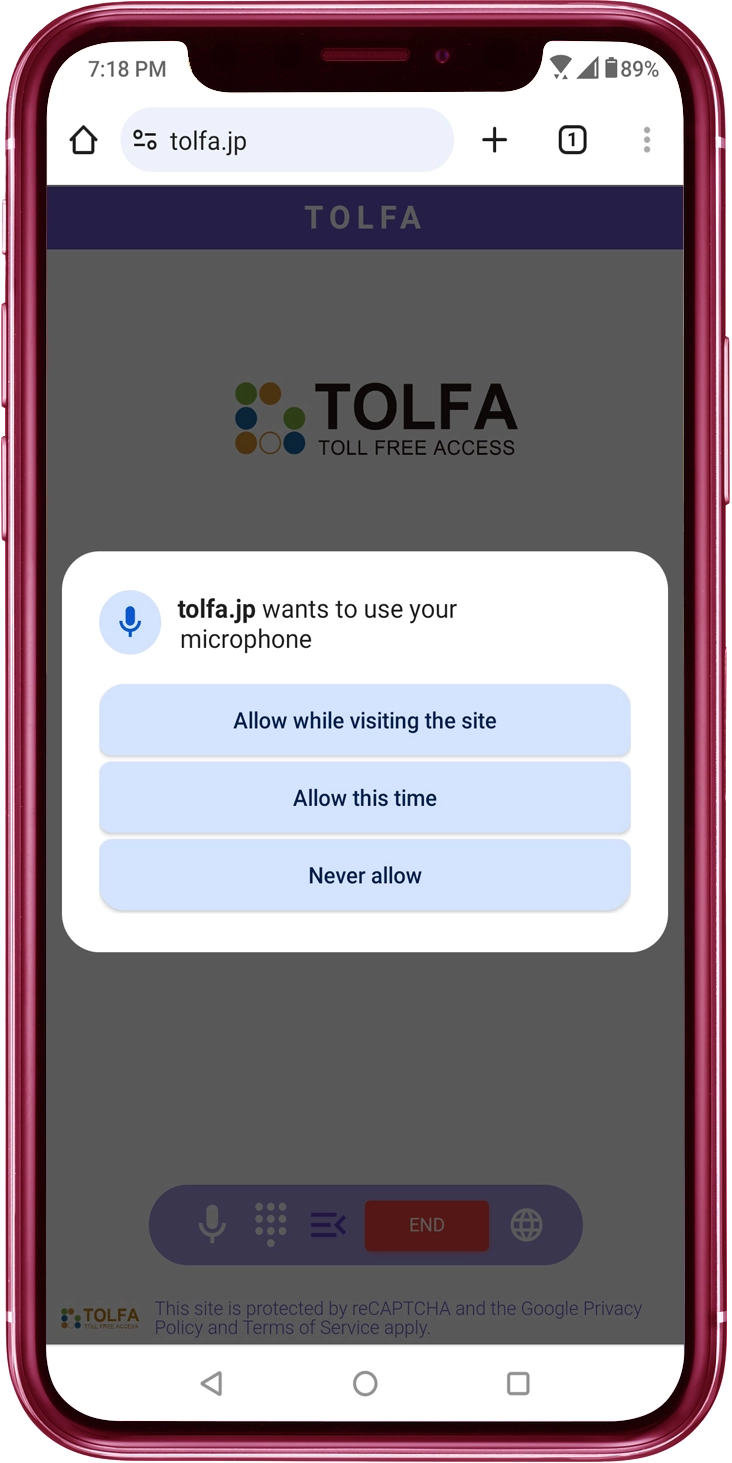
Allow the Microphone to Be Used in the Browser
After tapping the CALL button, if a dialog appears asking for permission to use the microphone in the browser, please tap 'Allow'. If microphone access is not allowed in the browser, you won't be able to make a call because the necessary microphone for the call won't be available.
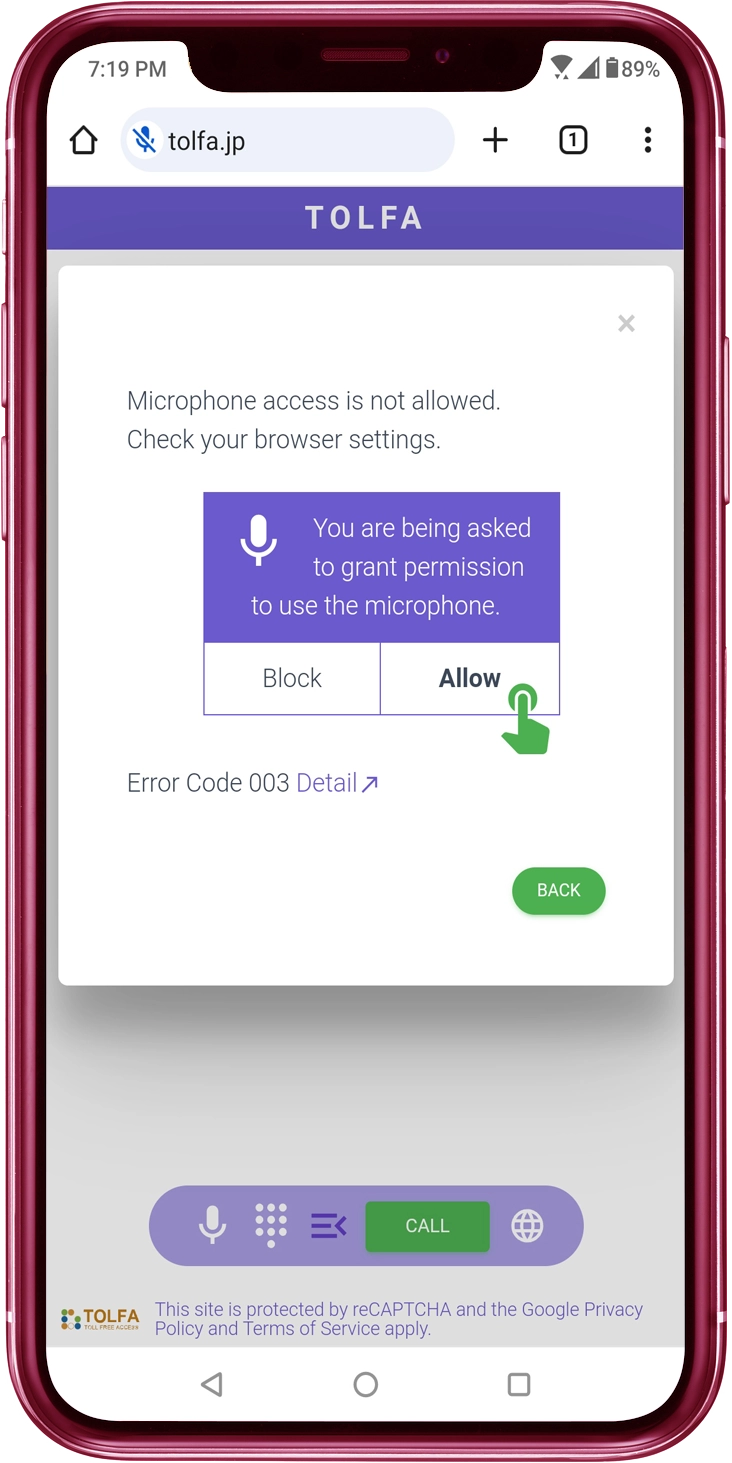
If Microphone Access Is Not Permitted...
You will see a dialog requesting permission for microphone access as shown below.
【iOS】Tap the CALL button again and grant permission for microphone usage.
【Android】Subsequently, since microphone access remains denied, site settings are required. Configure the settings here.
Start Making a Call
If the call is successfully placed, you'll hear a beep, then connect to the contact center.
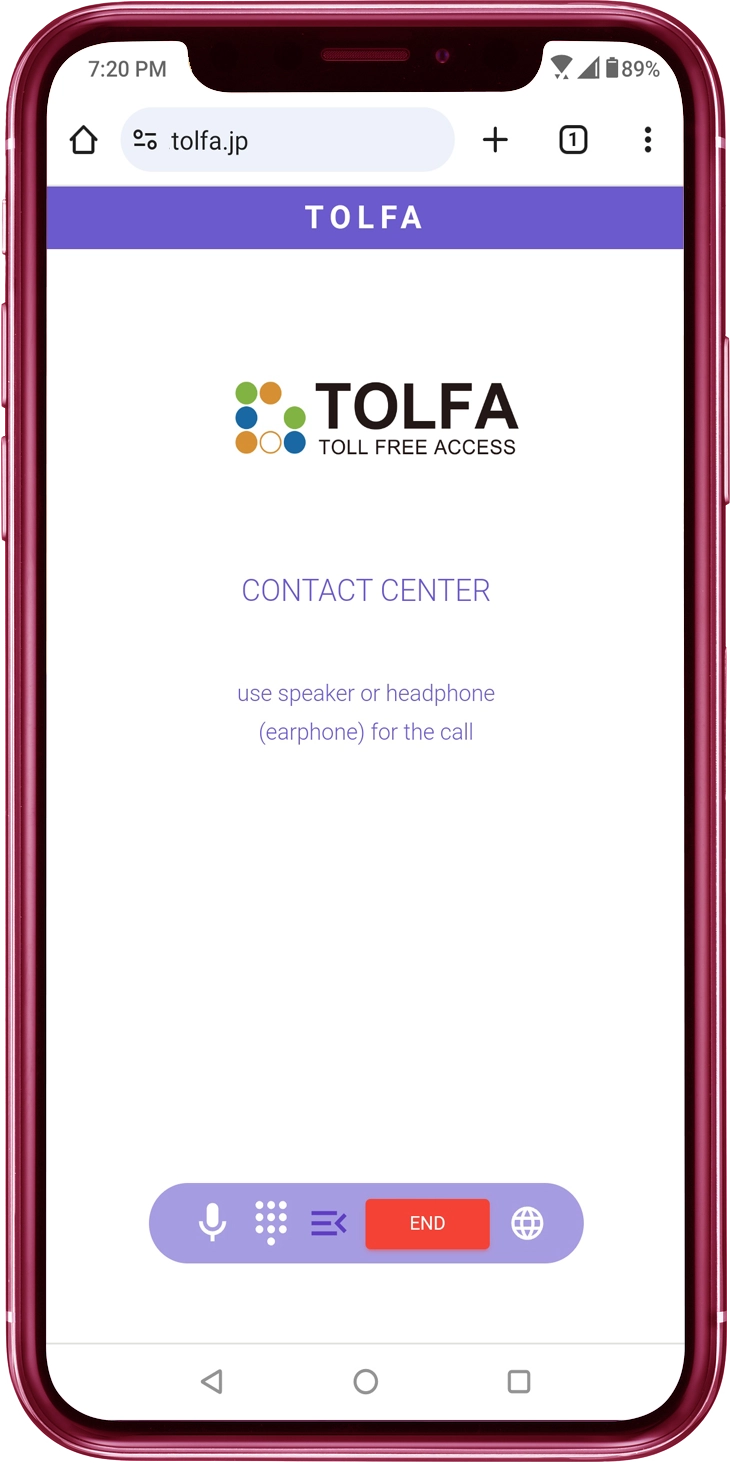
(Android)Keep the Browser Active while Making the Call.
In Android, when you background the browser or put the smartphone to sleep, audio transmission and reception will be blocked after a certain period of time. If you are using other apps, bring the browser to the foreground for making calls.
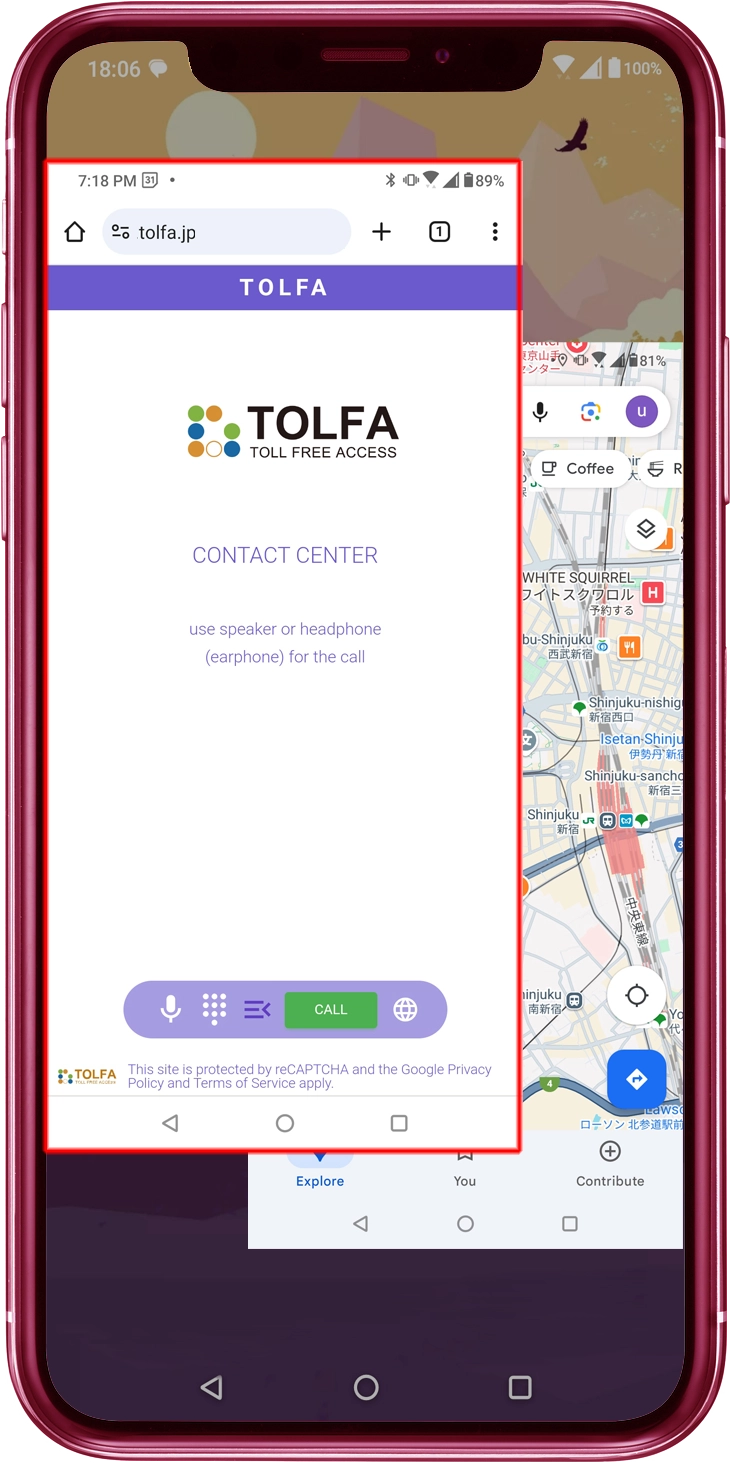
If Audio Transmission and Reception Are Blocked
TOLFA automatically places the call on hold to prevent disconnection even if audio transmission and reception are blocked (TOLFA provide guidance indicating that the call has been placed on hold). When you bring the browser to the foreground to remove the hold, you can resume the conversation with the contact center agent you were speaking to previously.
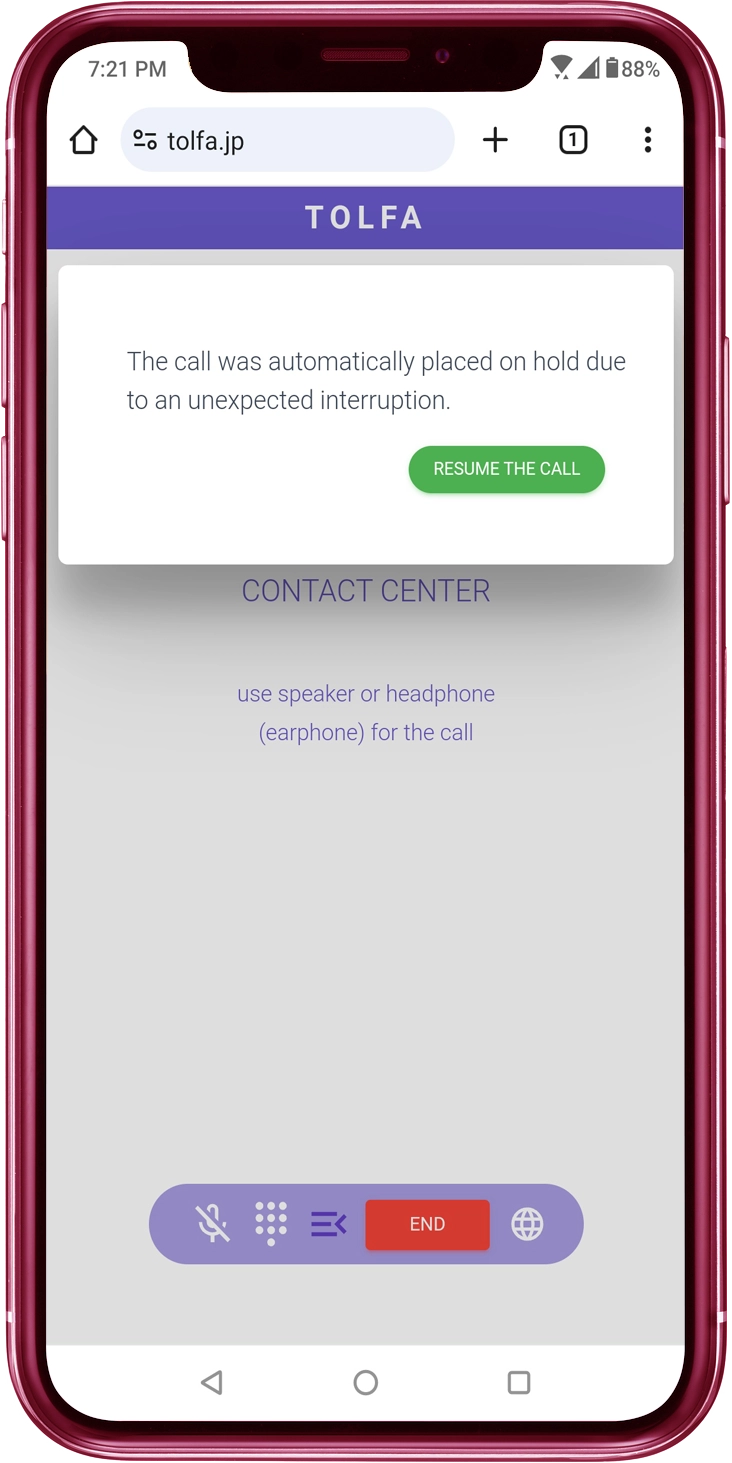
However, There Are Unfortunate Times as Well
It Depends on the Browser's Specifications

TOLFA behaves according to the specifications of the browser, so there may be times when it doesn't work as expected in your environment. Even if you couldn't use it this time, we hope you'll consider using it in the future.